


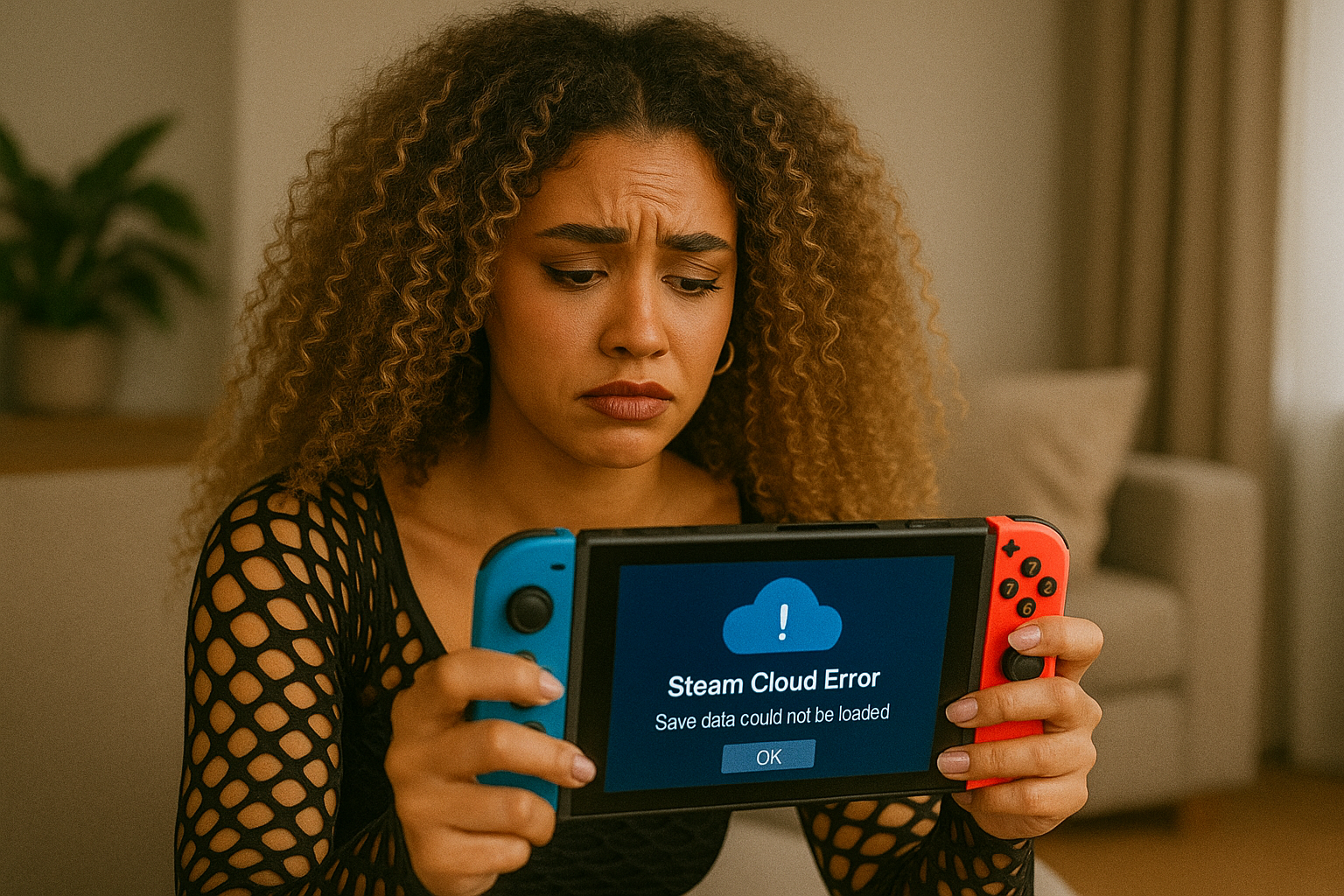
☁️ Steam Cloud Sync Error: Lost Save Files (Ultimate 2025 Recovery & Prevention Guide)
There are few PC gaming nightmares as intense as booting up Steam, launching your favorite game, and suddenly being greeted by the ominous message: “Steam Cloud Error,” “Unable to sync your save files,” “Conflict detected,” or even worse, “Your Steam Cloud files are out of date.” 😭🔥
In one moment you’re ready to continue your adventure in Baldur’s Gate 3, Elden Ring, Cyberpunk 2077, RimWorld, Stardew Valley, Cities: Skylines, or any other beloved title… and the next moment you’re staring at an empty save list, a corrupted profile, or a strange pop-up asking whether to use “local files” or “cloud files.” Even worse, sometimes Steam syncs the wrong version of your progress, overwriting hours—or even hundreds of hours—of gameplay.
But don’t panic: Steam Cloud losses are not always permanent, and in many cases, your files can be recovered or reconstructed through Steam’s built-in systems, internal backups, hidden directories, or Version Conflict Recovery. Even when recovery isn’t possible, you can prevent future disasters by understanding how Steam Cloud actually works, what triggers sync failures, and how to manage your local save data responsibly.
This guide blends deep technical expertise with a friendly, gamer-to-gamer voice 😊🎮, so you can not only fix your current Steam Cloud issue but also avoid losing progress ever again.
⭐ Definition: What Is a Steam Cloud Sync Error?
A Steam Cloud Sync Error occurs when Steam fails to correctly upload or download save files between your PC and Steam’s cloud servers. This usually happens during:
• game launch
• game exit
• Steam startup
• Steam shutdown
• switching between devices
• corrupted or missing save files
• unexpected PC shutdowns
Cloud sync problems can result in:
• missing saves
• overwritten saves
• out-of-date Cloud versions
• corruption during upload
• device-specific conflicts
⭐ Why Steam Cloud Sync Problems Matter
Steam Cloud is meant to make gaming seamless: you play at home, you continue at work, then on travel, and every device syncs perfectly. But when the sync breaks, you lose:
• progress hours
• unlocked achievements
• character builds
• mod configurations
• world states
• custom maps
• story progression
• multiplayer profiles
• total play continuity
For gamers, this is more than a technical error — it’s a hit to motivation, emotional investment, and time.
⭐ Most Common Causes of Steam Cloud Sync Errors
1️⃣ Corrupted local save files
Sudden shutdowns or game crashes damage save structures.
2️⃣ Poor internet during upload or download
Interrupted sync sessions can produce half-written cloud data.
3️⃣ Using multiple PCs out of sync
One machine uploads old data over new progress.
4️⃣ Steam offline mode issues
Offline gameplay can easily create file conflicts.
5️⃣ File path or permission problems
Windows blocks Steam from reading certain directories.
6️⃣ Game updates modifying save formats
New patches sometimes break compatibility.
7️⃣ Full cloud quota
Steam Cloud limits storage per game.
8️⃣ Manual file editing
Modding or editing save files can break sync integrity.
9️⃣ Antivirus or backup software locking files
The save files cannot be accessed when Steam needs them.
🔟 Developers disabling Steam Cloud temporarily
Some titles remove Cloud sync during updates or maintenance.
⭐ Table: Problem Type vs Likely Cause
| Issue | Likely Cause | Explanation |
|---|---|---|
| Missing saves on new PC | Cloud failed to upload | Local data never synced |
| Steam Cloud conflict popup | Two versions exist | PC and Cloud disagree |
| Save reverted to older version | Wrong file chosen during conflict | Cloud overwrote local |
| Cloud sync stuck forever | Corrupted upload queue | Partial files block the pipeline |
| Offline mode caused lost data | Outdated progress overwritten | Sync didn’t happen |
| Save corrupted after update | Patch changed format | Cloud restored incompatible version |
⭐ Full Fix Guide: How to Recover Lost Save Files and Repair Steam Cloud Sync
1. Don’t click anything on the conflict popup yet
If you see:
“Which version do you want to use?”
• Local Files
• Cloud Files
Do NOT blindly choose the cloud version.
Often your local files are newer and safer.
2. Locate your local save folder (critical for recovery)
Common paths include:
C:Users<YourName>DocumentsMy Games<GameName>
C:Users<YourName>AppDataLocal<GameName>
C:Users<YourName>AppDataRoaming<GameName>
Steamsteamappscommon<GameName>
Steamuserdata<YourSteamID><AppID>
Steam Cloud uses the userdata folder for cloud sync.
3. Backup everything manually before making changes
Create a local backup folder such as:
DesktopGameBackup
Copy your entire save directory into it.
4. Check Steam’s cloud conflict resolution tool
Right-click the game in Steam → Properties → General → Steam Cloud
Here you may see:
• Cloud data timestamp
• Local data timestamp
• File sizes
• Sync errors
Compare timestamps to choose correctly.
5. Force Steam Cloud to download the cloud version
If your cloud save is newer:
- Exit Steam
- Delete local saves (after backing them up)
- Start Steam
- Launch game → Steam downloads cloud version
6. Force Steam Cloud to upload your local version
If your local saves are newer:
- Go offline in Steam
- Launch the game once → create a safe shutdown
- Return to online mode
- Steam prompts: upload latest version → YES
This forces a “local files take priority” sync.
7. Delete the Steam Cloud cache
Corrupted cache prevents sync.
Navigate to:
Steamuserdata<yourSteamID>7remote
or sometimes:
Steamlogscloud_log.txt
Steamconfightmlcache
Delete cache folders (not save files).
8. Use Steam’s Cloud Conflict Log
Navigate to:
Steamlogscloud_log.txt
This file shows:
• what failed
• which files were skipped
• whether uploads or downloads were blocked
9. Ensure Windows isn’t blocking the save folder
Right-click the folder → Properties → Security
Check that your user and Steam have read/write permission.
10. Turn off Steam Cloud temporarily and re-sync
In the game settings:
Disable Steam Cloud → launch game → close it → re-enable Cloud → re-launch.
This resets the flags.
11. Check the game’s official save path (some games move saves after updates)
For example, some games transition:
From
DocumentsMy Games
To
AppDataLocal
Steam Cloud may not know the location changed.
12. Recover older saves using Windows File History or OneDrive shadow copies
If enabled, you may recover:
• previous versions
• autosaves
• shadow copies
Right-click folder → “Restore previous version.”
13. Reinstall Steam Cloud Components (advanced)
Turn off Steam Cloud globally → restart Steam → turn it back on.
14. Check if the game’s developer disabled Cloud sync temporarily
Some Early Access games frequently disable Cloud until patches stabilize.
15. Contact Steam Support if:
• The cloud save file is present but unreadable
• You cannot download Cloud data
• Cloud quota exceeded and stuck
Support can often restore cloud backups stored server-side.
⭐ Extra Fixes for Cloud Save Recovery in Specific Games
Elden Ring
Save location tied to AppData; Cloud conflicts common after patches.
Baldur’s Gate 3
Massive saves exceed Cloud quotas frequently.
Cities: Skylines
Modded saves often break cloud uploading.
Stardew Valley
Switching between laptop/desktop often triggers outdated Cloud content.
Terraria
Version mismatches cause frequent sync conflicts.
⭐ Real-Life Examples of Steam Cloud Recovery
Example 1: Missing 80 Hours of Baldur’s Gate 3 Progress
Cause: laptop offline mode didn’t sync → PC overwrote cloud with outdated file
Fix: recovered local laptop save folder → re-uploaded manually
Example 2: Stardew Valley Cloud Conflict Every Launch
Cause: two PCs with mismatched dates
Fix: forced Steam to choose PC with newest timestamp
Example 3: Cloud Sync Stuck Forever
Cause: corrupted upload queue file
Fix: deleted cloud cache + restart
Example 4: Corrupted Save After Patch
Cause: incompatible file version uploaded to Cloud
Fix: restored previous shadow copy using Windows File History
⭐ Anecdote: The Time Steam Cloud Tried to Erase My Life’s Work
I once had a Cities: Skylines save city I’d been building for 300+ hours — custom transit systems, neighborhoods, landmarks, the whole thing. One day, Steam Cloud threw a conflict popup saying the cloud version was 0 bytes and asked whether I wanted to overwrite my local saves.
If I had clicked “Cloud Version,” my entire city would have vanished.
Lesson learned: never trust Steam Cloud blindly — check file sizes, timestamps, and always make backups of your most important worlds 😅🌆.
⭐ Metaphor: Steam Cloud Is Like a Librarian With Two Books 📚
Imagine you write a story in a notebook (your PC), and the librarian (Steam Cloud) keeps a backup copy. But if you update your notebook while offline, and the librarian updates her copy separately, neither knows which is correct. When you return, both versions disagree — and you must decide which one is the real story.
⭐ Simple Diagram: How Steam Cloud Sync Works
Game Saves → Local Save Folder → Steam Cloud Client → Upload/Download → Steam Servers → Other Devices
                             ↑
              Sync errors happen here when local & cloud versions conflict
⭐ Conclusion
Steam Cloud sync errors result from mismatched timestamps, corrupted saves, permission issues, outdated cloud data, file conflicts, Internet interruptions, and changes in save paths, yet with the right steps — backing up saves, comparing timestamps, forcing uploads, reinstalling Gaming Services, clearing cache files, restoring previous versions, managing offline mode properly, and understanding Steam Cloud behavior — you can recover lost data and prevent future failures.
Once you understand how Steam Cloud actually tracks and synchronizes your files, navigating sync conflicts becomes not just manageable but empowering ☁️💾🎮.
❓ 10 Specific, Niche FAQs About Steam Cloud Sync Errors
1. Why does Steam Cloud break when switching between PC and Steam Deck?
Different OS timestamps and file sync speeds create mismatches.
2. Why does Steam upload corrupted saves instead of rejecting them?
Steam Cloud doesn’t validate file integrity — it only stores what it receives.
3. Why do cloud saves disappear after reinstalling Windows?
Steam may assume the PC is new and start fresh sync flags.
4. Why do some games sync only partial data?
Developers choose which folders and file types sync.
5. Why do save files revert when using mods?
Modded saves are often not cloud-safe.
6. Why does Steam show old cloud data even after successful uploads?
Cloud metadata caches slowly on some servers.
7. Why doesn’t Steam Cloud warn me before overwriting newer saves?
Conflict detection isn’t perfect; timestamps sometimes misreport.
8. Why do some games lose saves if I close Steam too fast?
Steam uploads only during shutdown sequences.
9. Why are some games incompatible with Steam Cloud entirely?
Developers must opt in and implement proper save folders.
10. Why does Steam Cloud break after power outages or crashes?
Incomplete writes produce corrupted file headers.
🤔 People Also Asked
1. Why does Steam Cloud sometimes sync slowly or not at all?
Server congestion, packet loss, or upload queue corruption.
2. Why do certain antivirus programs interfere with Steam Cloud?
They lock save files during scheduled scans.
3. Why do Steam Cloud conflicts happen more with laptops?
Sleep mode interrupts save writes.
4. Why does Steam sync older files over newer ones?
Timestamp confusion between PCs.
5. Why do some games store huge cloud files?
Large open-world saves require multi-file backups.
You should also read these…
- noepic.com – why cant i upload long videos on tiktok
- surgeblog.com – no live option for tiktok business accounts
- olddry.com – how to create your own custom wheel for any occasi
- huesly.com – forgot tiktok password step by step recovery guide
- hogwar.com – case study a commercial project upgraded with durf
- toojet.com – my tiktok messages were deleted recovery methods
- closedad.com – league of legends reconnect loop error
- surgeblog.com – videos not matching tiktok algorithm rules
- hogwar.com – twitter x safe mode enabled engagement dropped how
- getaluck.com – acoustic comfort in office spaces leveraging durfo